The CPI Pricing Import functionality enables a CPI Pricing File to be imported into Idealpos.
When a CPI File is imported from LMG, the file will be searched for items which match the State, Banner and Pricing Zone that are configured in Idealpos.
Any Stock Items in Idealpos which have a Scan Code or Alternate Code that match the Barcode in the CPI File for the configured State, Banner and Pricing Zone will be added to a Scheduled Price Change.
All Scheduled Price Changes created with the CPI Pricing Import function will be applied to Price Level 1.
To skip to a specific section of this page, click on the following links:
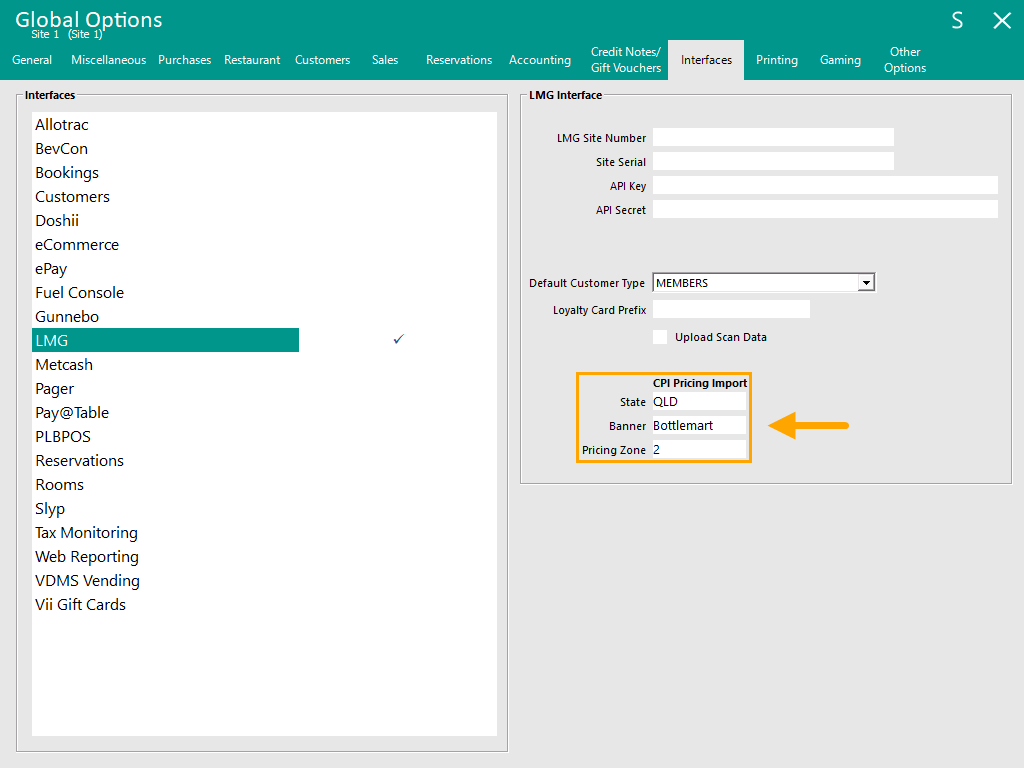
To configure CPI Pricing Import, go to:
Back Office > Setup > Global Options > Interfaces > LMG
Under the CPI Pricing Import section, configure the following fields:
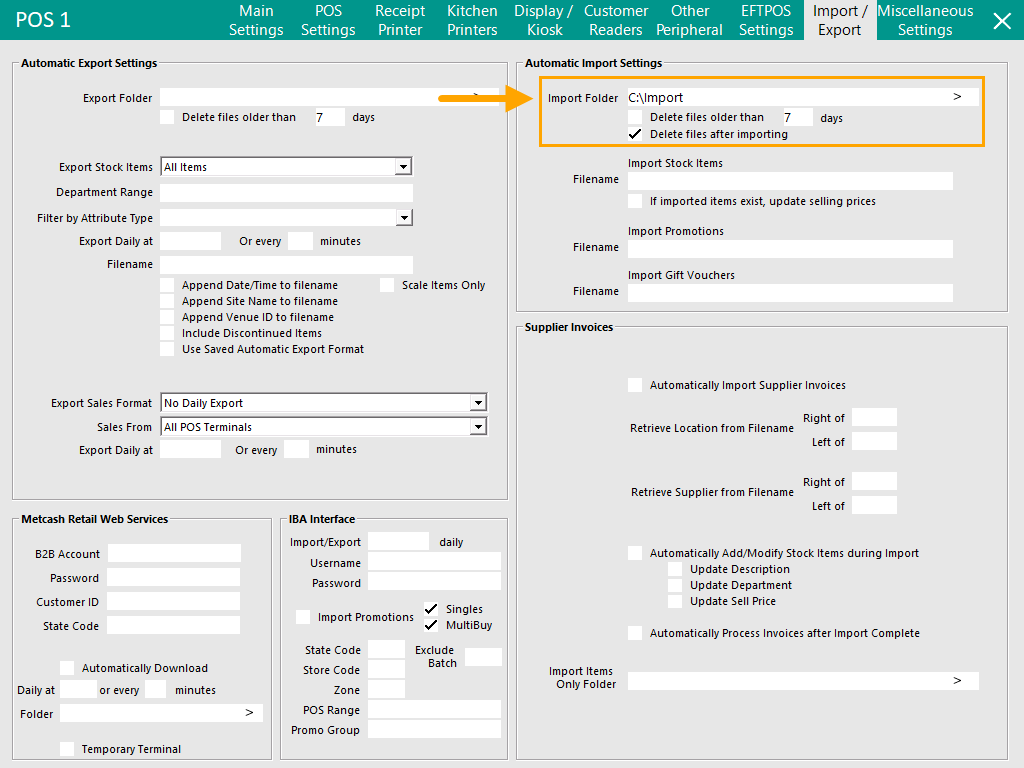
After the CPI Pricing Import has been configured, go to: Back Office > Setup > POS Terminals > Select a Terminal that will handle the Automatic Import > Modify > Import/Export.
Within the Import/Export tab, configure the Automatic Import Settings section as follows:
The below shows an example of a CPI File.

The text content of the import file is shown below:
Program_Description,Program_Effective_Date,Program_End_Date,Sell Product Name,Sell LMG Product Code,Buy LMG Product Code,barcode,Price,Banner Name,State,Pricing Zone,Department,Pack Size,Retail Packs,quantity,Range Code,range desc,alm_code
Core,2025-12-22,,Bombay Sapphire Gin 700ml Single (6pk),25012281,25049295,05010103518864,69.9900,Bottlemart,QLD,2,D.Spirits,6,6,1,R00056,Bombay Sapphire Gin,00999893
Core,2025-12-22,,Grey Goose Vodka 700ml Single (6pk),25013277,25048714,03259680007497,84.9900,Bottlemart,QLD,2,D.Spirits,6,6,1,R00234,Grey Goose Vodka,00818403
Core,2025-12-22,,Hard Rated Alcoholic Lemon 6% Can 330ml 10pk (3 x 10),25115245,25115244,09329982025841,61.9900,Thirsty Camel,WA,3,E.RTD,30,3,10,R06943,Hard Rated Alcoholic Lemon 6% 10 Pack Cans,00401052
Core,2025-12-22,,Bundaberg OP Rum & Cola 6% Can 375ml 10pk (30 x 10),25049625,,07318127077366,61.9900,Bottlemart,QLD,4,E.RTD,30,3,10,R00093,Bundaberg OP Rum & Cola 6% 10 Pack Cans,
Items are matched based on the State, Banner, Pricing Zone configured above and the Stock Item's Scan Code/Alternate Code.
Using the above example file together with the State, Banner, Pricing Zone configured in the steps above, only the first two items match.
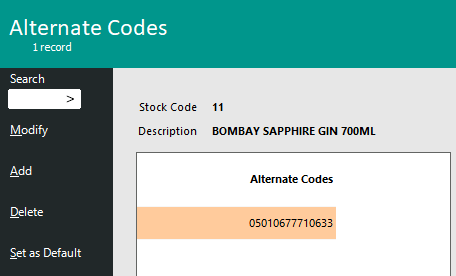
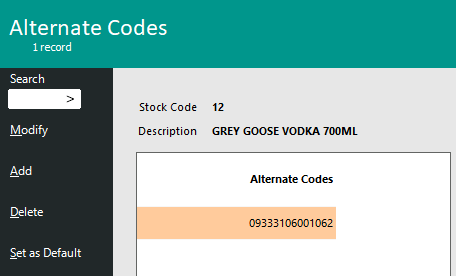
Idealpos then searches for any Stock Items which have a Scan Code or Alternate Code which match the barcode in the CPI file.
If the barcode in the CPI file matches an Idealpos Stock Item's Scan Code or Alternate Code, the Price from the Price column in the CPI file will be added to a Scheduled Price Change for that matching Idealpos Stock Item.
To use the CPI Pricing Import, a CPI Pricing File will need to be placed into the Import Folder (as configured in the Configuring CPI Pricing Import section above).
The CPI Pricing File may be manually copied to the Import Folder or there may be automated processes at the venue configured to trigger the file to be retrieved from LMG and automatically placed into the Import Folder.
For the purposes of the User Guide, a CPI Pricing File is manually copied into the Import Folder.
Go to the import folder configured above and paste the CPI file into the folder (the CPI file will need to be named cpi_pricing_*.csv).
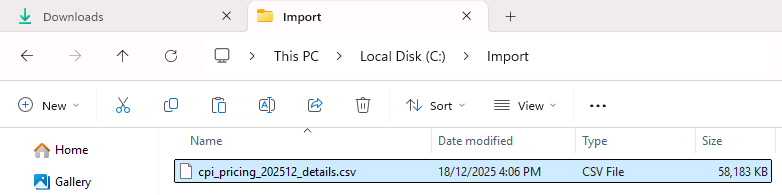
The file will be automatically imported by Idealpos.
After the file has been imported, it will be renamed.
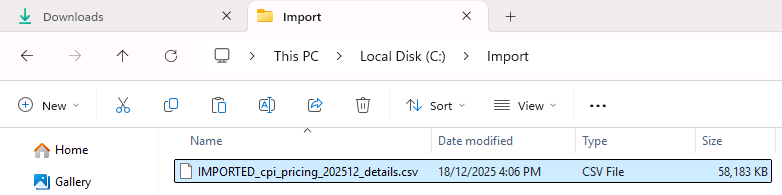
If any Price Changes are found for the imported CPI File, a Scheduled Price Change will be created.
For information about how Idealpos Stock Items are matched with the CPI Pricing File, refer to Sample CPI File/How Idealpos Items are matched with CPI Price Changes above.
The name of the Price Change will match the CPI Price Change Import file.
Go to: Back Office > File > Sales > Scheduled Price Changes.
A Scheduled Price Change is created.
If a Scheduled Price Change does not appear, this could be due to one of the following reasons:
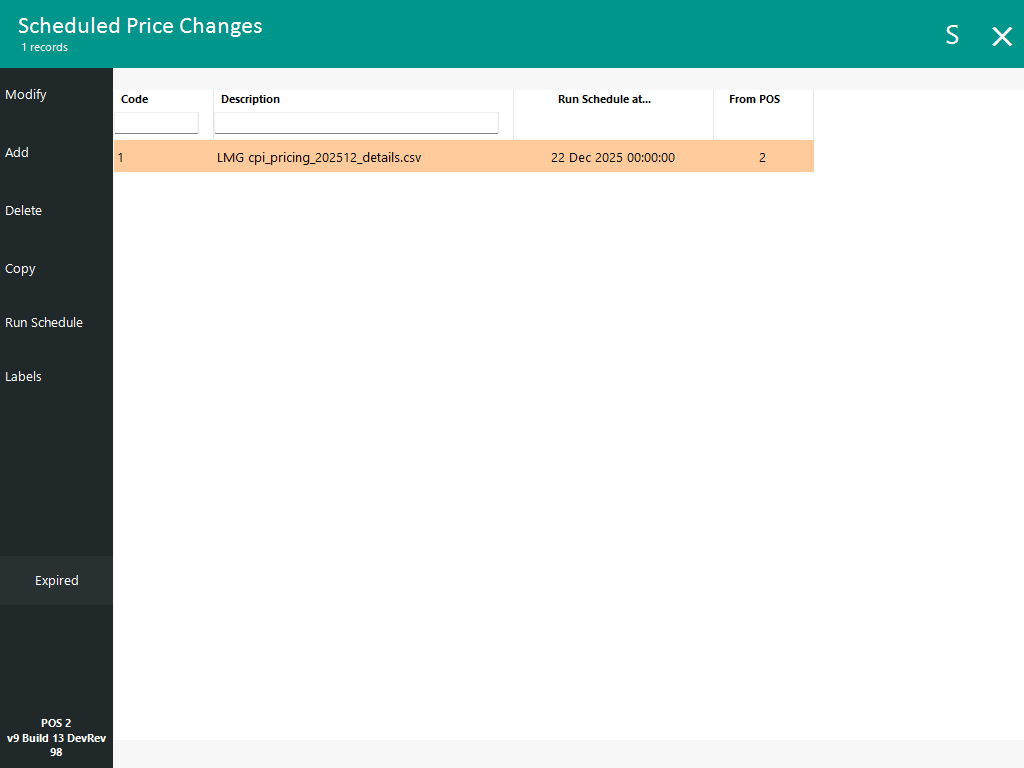
Select the Scheduled Price Change and press "Modify" to view the Stock Items included in the Price Change.
All Scheduled Price Changes created with the CPI Pricing Import function will be applied to Price Level 1.
The "Price Changes Only" button can be pressed on the bottom-left corner to only show the Stock Items that have Price Changes.
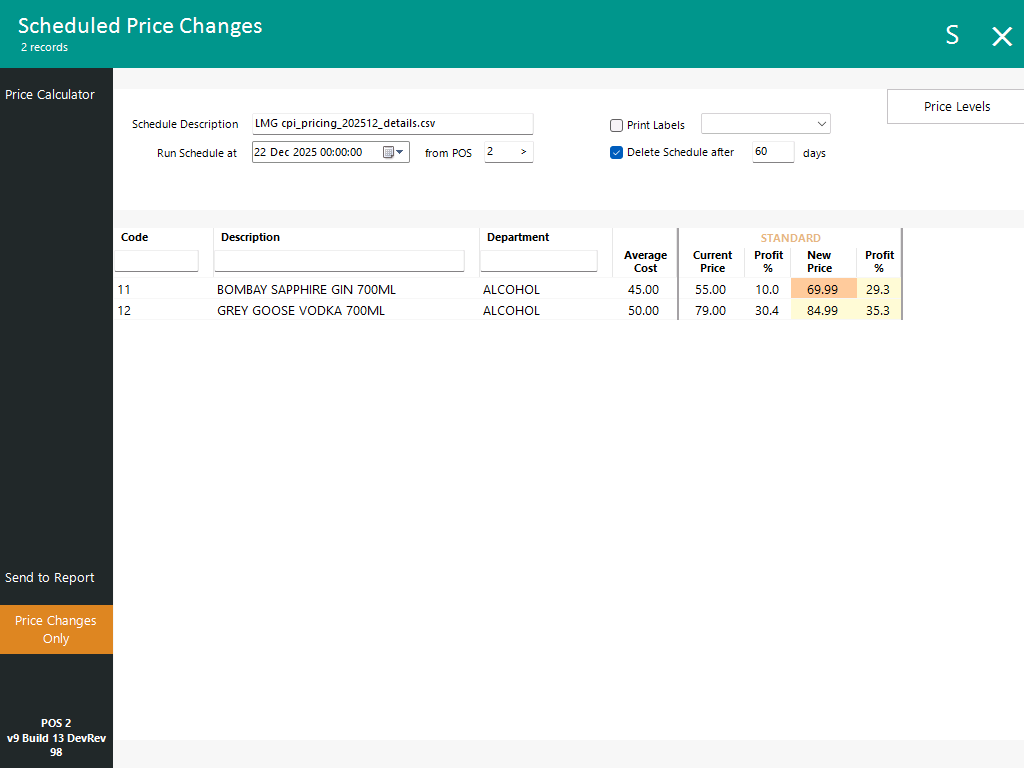
The Scheduled Price Change will be run automatically at the date/time shown in the "Run Schedule at" field shown at the top of the Scheduled Price Changes window.